
MIDI, DMX and Art-Net in a Mobile Projection Mapping App
Control LayerMapper MApp with MIDI controllers, sync it with Ableton Link and link it to a lighting rig over DMX / Art-Net – on iPhone, iPad or Android.

Touchscreens are great for building a show and awkward for performing one. When the lights go down, you want physical faders, pads that respond without looking, and visuals that follow the lighting desk. Version 3 of LayerMapper MApp added exactly that: MIDI Learn and DMX / Art-Net.
MIDI Learn: any control on a real controller
- Connect a MIDI controller to your device (USB or a compatible adapter).
- Turn on MIDI Learn in MApp – controls show they are ready to be assigned.
- Tap a control in MApp, then move a fader, turn a knob or hit a pad.
- Done – that control now follows your hardware.
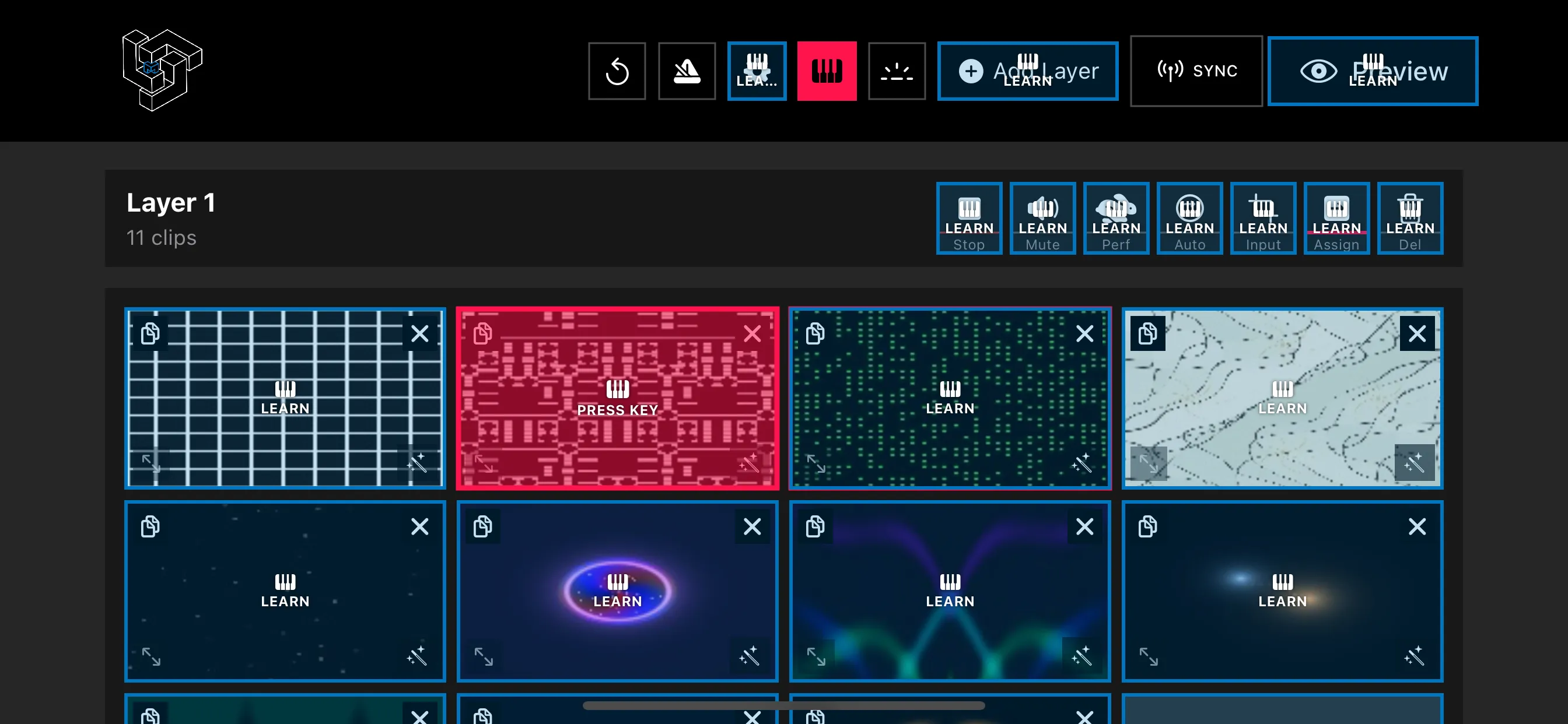
Good things to map first: clip triggers for each layer, layer opacity on faders, the 16 preset slots on pads, and shader parameters on knobs.
Tempo: BPM sync and Ableton Link
Visuals that drift off the beat look amateur. MApp keeps animations, loops and recorded corner motion in time with BPM sync and Ableton Link, which shares tempo with music software and hardware on the same network – DJ software, Ableton Live and many apps that support Link.
DMX / Art-Net: part of the lighting rig (beta)
DMX / Art-Net support lets MApp respond to DMX commands in real time, so the lighting desk and the visuals can run as one show: the operator who programs the lights can cue the mapping in the same timeline. DMX in MApp is in beta – it works and is useful today, and we keep extending it.
Typical setup:
- An Art-Net node or a lighting desk with Art-Net output on the same network as your device.
- MApp listening on the network; channels mapped to the actions you want.
- A test with the house lights before doors open.
Building a controllable show
- Give every scene a preset (P1–P16) and put the presets on pads.
- Keep one fader per layer for opacity – the fastest way to fix a look live.
- Use cue points on clips and the cue panel in the Preview view for timed moments.
- Rehearse with the same controller you will use on stage, and save the mapping in the project.
Summary
With MIDI Learn, Ableton Link and DMX / Art-Net, MApp behaves like a member of the technical crew rather than an app on a phone. See all control features in the MApp feature list.
Frequently asked questions
Does LayerMapper MApp support MIDI controllers?
Yes. MIDI Learn lets you map any control in MApp to faders, pads and knobs on an external MIDI controller.
Can MApp work with a lighting desk?
Yes, in beta. Since version 3, MApp supports DMX / Art-Net so it can respond to DMX commands from a lighting rig in real time.