
Live Cameras in Projection Mapping: Dual Camera and HDMI
Use your phone's front and back cameras at once, or any HDMI source through a USB capture card, as live layers in LayerMapper MApp projection mapping.

Prerecorded clips are only half of live visuals. The other half is what happens in the room right now – the performer, the crowd, a game console, a camera on a tripod. LayerMapper MApp brings all of that in as live layers you can warp, mask, blend and map like any other clip.
Dual camera: two live sources from one phone
MApp can use the front and back cameras at the same time, as two separate live sources. Each one goes to its own layer, so you can:
- map the back camera onto one surface and the front camera onto another,
- blend them together with Add or Screen for a layered look,
- switch between them with presets or MIDI during a show.
At a music festival we mixed both smartphone cameras on two meshes – just a phone, no editing.
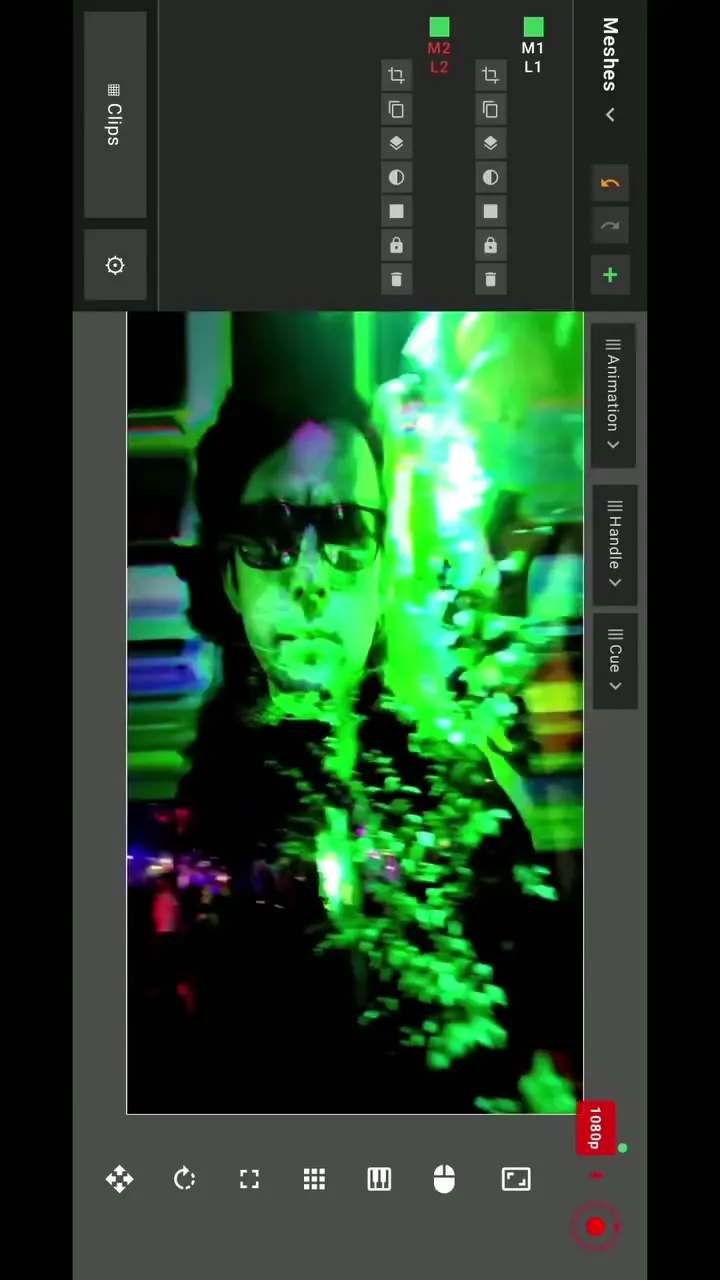
Camera audio is supported too (since version 2.2), which matters when you stream or record the clean output.
HDMI capture: any device as a layer
With a USB HDMI capture card (UVC) connected to your device, anything with an HDMI output becomes a live input in MApp:
- a game console projected onto a wall,
- a DSLR or camcorder with a better lens than the phone,
- a laptop running other software – presentation slides, a browser, another VJ tool.
Check that your device supports USB video devices; on iPad this means a model with USB-C.
Creative tricks with live input
- Feedback loops with projection lasers: point the camera at the beam or the projection and feed it back into the mapping – our projection lasers tutorial shows the effect.
- Live drawing: combine the camera with NDI from a drawing app on another iPad – see NDI in projection mapping.
- Masks: put the camera on a mask mesh to show the performer only inside a shape.
- Stream it: cameras plus the mapping make a small multi-camera stream – see live streaming.
Tips for a clean image
- Light the subject, not the projection surface – projected light on a face can look harsh on camera.
- Lock the camera’s exposure where possible, so projected flashes don’t make the picture pump.
- Keep cables short and use a powered USB-C hub when you add a capture card and power at the same time.
Summary
Live cameras and HDMI capture turn MApp from a clip player into a live video mixer for mapping. Start with the dual camera on two meshes, then add a capture card for consoles and cameras. All inputs are listed in the MApp feature list.
Frequently asked questions
Can I use both phone cameras at the same time?
Yes. LayerMapper MApp can use the front and back cameras at the same time as two independent live sources, each on its own layer and mesh.
How do I bring a console or camera into MApp?
Connect it through a USB HDMI capture card (UVC). MApp treats it as a live input that you can map like any clip.